
How Requests works: your child asks, you decide
It's 7:15 p.m. Reading's done, and your child is at the kitchen door: "Can I have YouTube for 20 minutes?" It's a fair ask. But saying yes used to mean opening the parent app, unblocking the app, setting a reminder, and remembering to block it again.
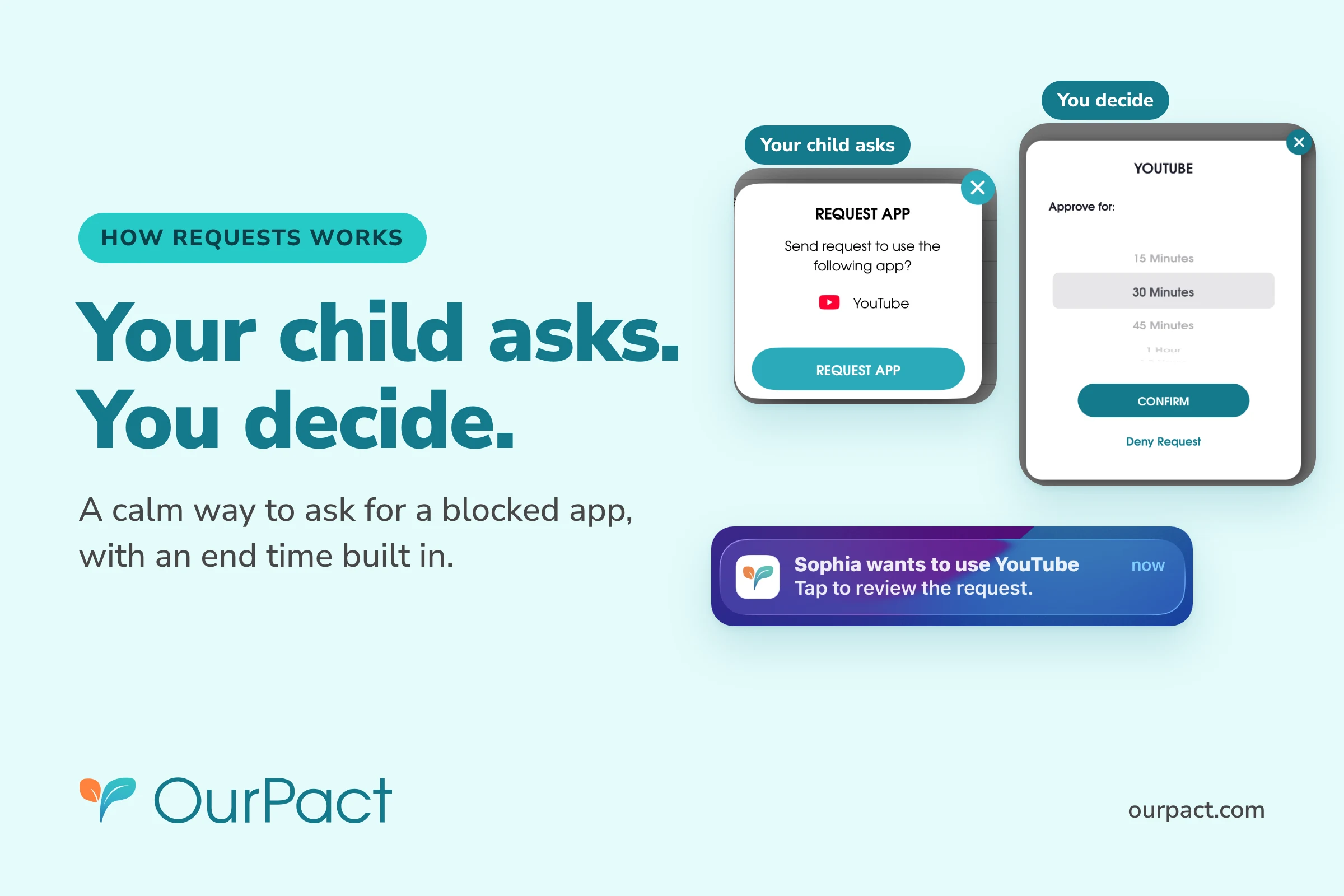
Requests makes that a few taps. Your child asks for a blocked app from their own device. You get a notification and decide: yes for the time you choose, or not right now. When the time is up, the app closes on its own.
Here's how it works on both sides, how to set it up, and a few things worth knowing before you turn it on.
What Requests does
Requests is part of OurPact Premium+. It lets your child ask for an app that's blocked, and lets you answer from your phone:
- Your child asks in OurPact Jr., the OurPact app on their device.
- You approve it for the time you choose, from 15 minutes to 12 hours, or deny it.
- The time ends on its own. You can also end it early.
The rules you've set stay in place. Requests just gives your child a clear, calm way to ask for an exception, and gives you a quick way to say yes.
How it works for your child
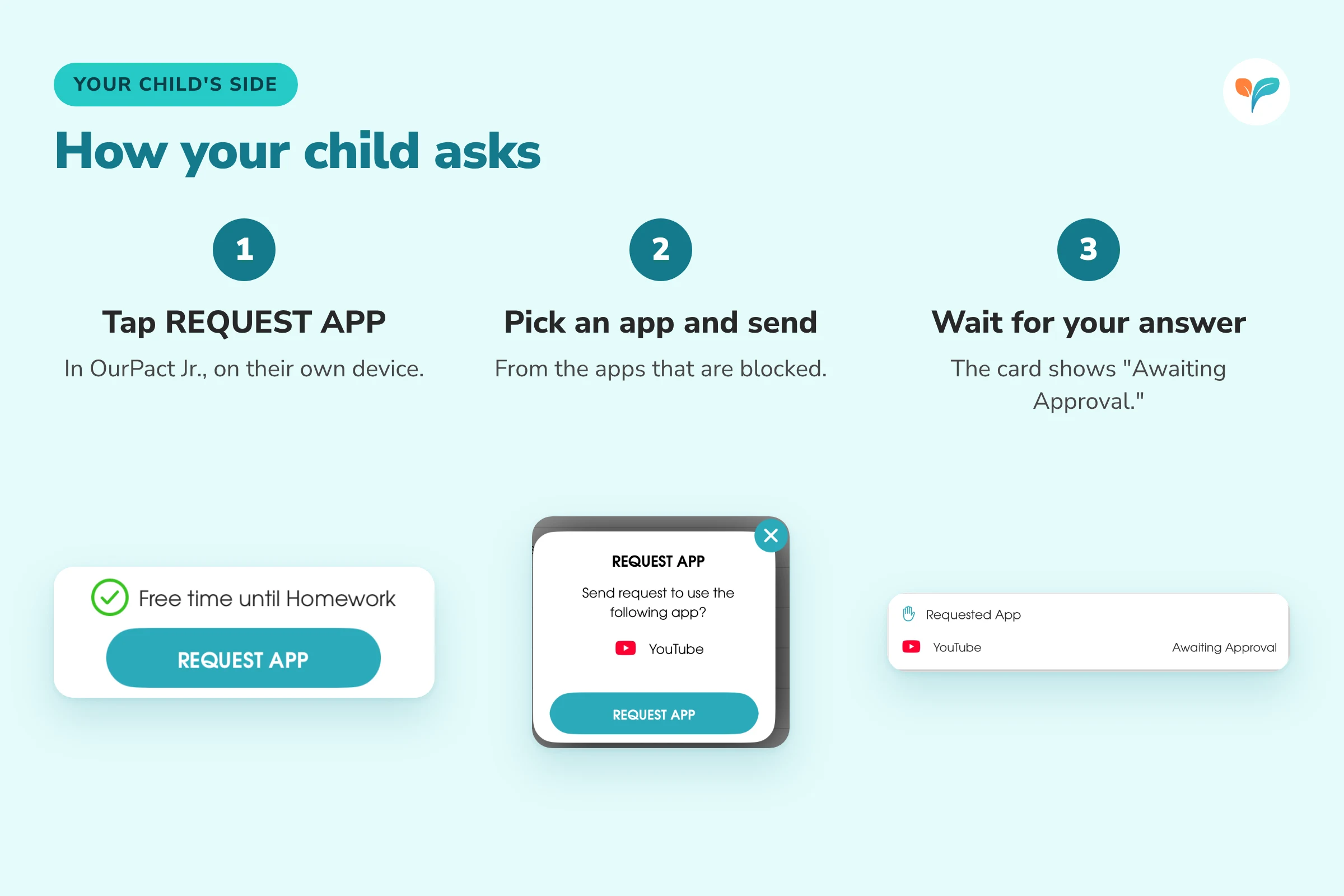
- In OurPact Jr., your child taps REQUEST APP and picks an app from their list.
- The request shows on the Requested App card as "Awaiting Approval."
- When you answer, your child gets a notification. If you approve, the card shows a countdown of the time left.
Your child's list shows the apps you've set to Always Blocked or Blocked by Schedule in App Rules. Apps set to Always Allowed aren't on it, because they're already open.
How it works for you
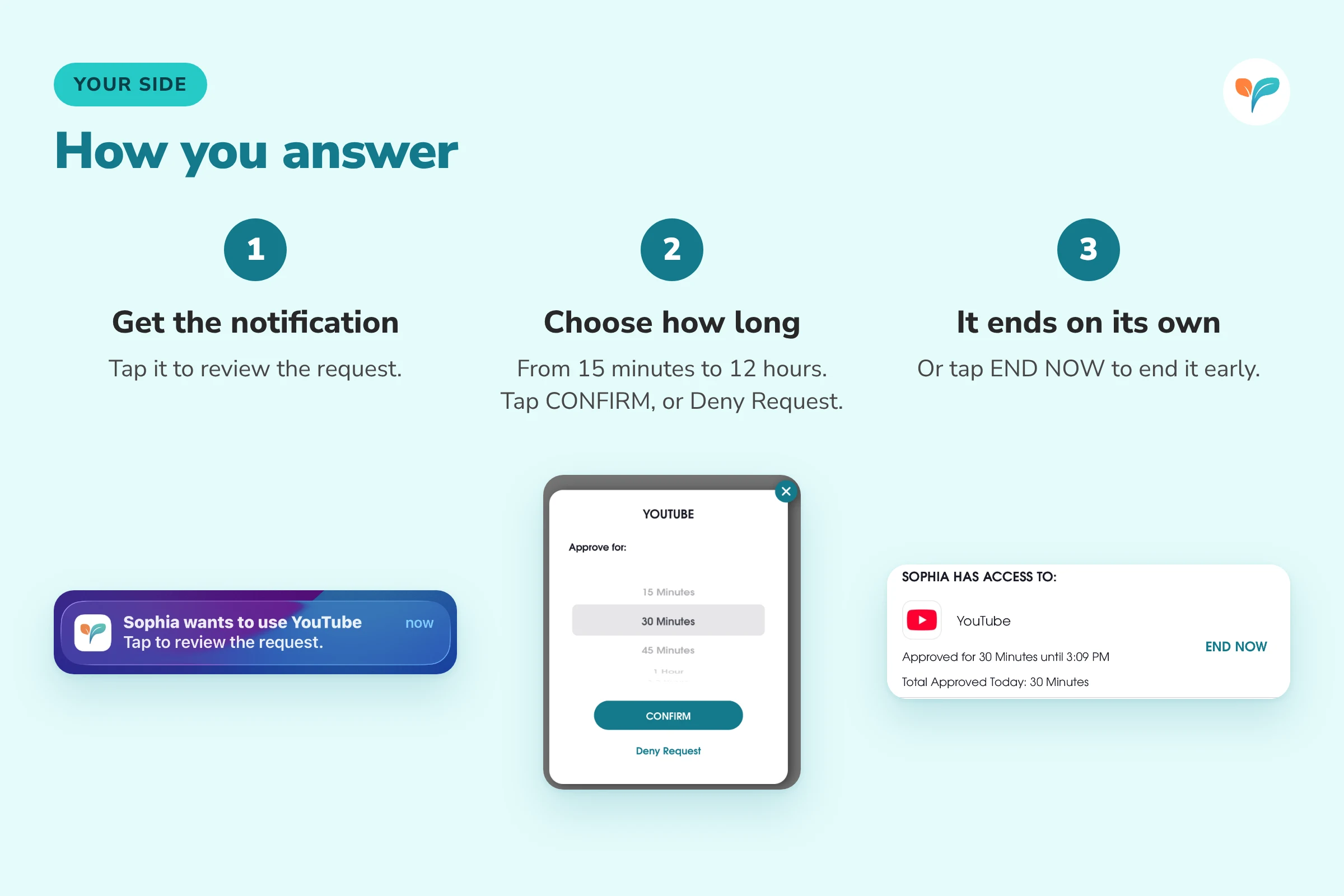
- You get a notification that your child is asking for an app.
- Tap REVIEW, choose how long, from 15 minutes to 12 hours, and tap CONFIRM. Or tap Deny Request.
- If you approve, the app usually opens within seconds, or in a minute or two if the device is slow to connect.
- When the time runs out, the app is blocked again, usually within a minute. To end it sooner, tap END NOW.
An approved app opens even during a schedule, like homework time, or an Instant Block. That makes Requests handy for the one-off yes: the group project video call during homework hours, or a game night with a cousin.
If two parents share the account, every parent phone gets the notification, and the first answer counts.
The Requests screen in the parent app shows waiting requests, what's approved right now, and Total Approved Today. Requests History (in Requests Settings) shows today and yesterday: what was approved, denied, expired, ended or canceled.
How to set it up
What you need:
- Premium+, including during the free trial.
- Your child's iPhone or iPad, paired with Full Pair (any iOS version) or Quick Pair on iOS 26.1 or later. Requests isn't available on Android child devices or in the OurPact web app yet.
- OurPact Jr. 8.16.0 or later on your child's device, and the OurPact parent app 9.20.1 or later on your iPhone or Android phone.
Turn it on:
- In the OurPact parent app, go to Screen Time › REQUESTS.
- Turn it on for your child. Requests is off by default, and you turn it on for each child.
- Let your child know it's there, and agree on how you'll use it (more on that below).
To change settings later, tap the gear next to Requests to open Requests Settings.
Good to know
- New approvals replace, they don't add. If your child asks again while time is running and you approve, the new time starts from now and replaces what was left.
- Unanswered requests go away. A request nobody answers clears after about an hour. Your child can have up to three waiting at once; a fourth replaces the oldest.
- Need a quiet hour? MUTE REQUESTS in Requests Settings silences notifications for a set time, or until tomorrow. Requests still arrive, and you'll see them on the Requests screen.
- Turning Requests off cancels any waiting requests. Time you've already approved keeps running until it ends, or until you tap END NOW.
Why asking works better than arguing
Most screen-time fights aren't about the rule. They're about the exception: one more episode, ten more minutes, just this once. Without a clear way to ask, the exception gets negotiated at the door, every night.
Requests gives the exception a place to live. Your child asks in a few taps. You answer when you can. A "no" is still an answer, and a "yes" comes with a clear end time, so nobody has to be the one who says "time's up."
It also fits how the American Academy of Pediatrics suggests families handle media: set the rules together, so parents and kids agree on how devices fit. And there's some research that how rules are set matters. In a 2017 study of 10- to 14-year-olds in the Netherlands, rules set in an autonomy-supportive way, explained and with the child's view respected, went along with less exposure to violent media, while strictly controlling rules showed no such link.
A few house rules make Requests work better:
- Agree on when asking is fair game. After homework? Not during dinner?
- Agree that "not right now" is an answer. Asking again in five minutes doesn't change it.
- Write it down. The free OurPact Family Media Pact worksheet has room for it.
How OurPact helps
Requests works with the rest of OurPact, across iPhone, iPad and Android from one parent app:
- App Rules decide which apps are Always Blocked, Blocked by Schedule or Always Allowed.
- Schedules cover homework time and bedtime on the days you pick.
- Requests (Premium+) handles the exceptions: your child asks, you decide.
See Requests on the Screen Time Management page, or try OurPact free for 14 days and choose Premium+.
The bottom line
Rules are easier to keep when there's a fair way to ask for an exception. With Requests, your child asks from their own device, you answer with a tap, and the time ends on its own. A pact, not a fight.
Frequently asked questions
Which plan includes Requests?
Premium+, including during the free trial. It isn't part of Premium or the free plan.
Does Requests work on Android?
Not on Android child devices yet. Your child needs an iPhone or iPad (Full Pair, or Quick Pair on iOS 26.1 or later). If you, the parent, have an Android phone, you can use Requests with your child's iPhone or iPad. Requests isn't in the OurPact web app yet.
My child doesn't see REQUEST APP. What should I check?
Make sure Requests is turned on for that child (Screen Time › REQUESTS), that you're on Premium+, and that your child's device has OurPact Jr. 8.16.0 or later and is a supported iPhone or iPad. The Requests help article has more.
Can I give more time while my child is already using an app?
Approved time can't be topped up. If your child asks again and you approve, the new time starts from now and replaces what was left.
Why isn't an app in my child's list?
The list shows apps set to Always Blocked or Blocked by Schedule. Apps set to Always Allowed are already open, so they aren't listed, and neither are the OurPact apps.
References
1. OurPact Support. Requests. https://support.ourpact.com/hc/en-us/articles/45172382930327-Requests (published 2026-11-20)
2. OurPact. Screen Time Management, Requests. https://www.ourpact.com/features/screen-time-management#requests; How it Works, How to Use Requests. https://www.ourpact.com/how-why/how-it-works (checked 2026-11-23)
3. American Academy of Pediatrics, HealthyChildren.org. How to Build Healthy Digital Habits: 5 Tips for Families. Updated 2026-01-06. https://www.healthychildren.org/English/family-life/Media/Pages/how-to-build-healthy-digital-habits-tips-for-families.aspx
4. Fikkers KM, Piotrowski JT, Valkenburg PM. A matter of style? Exploring the effects of parental mediation styles on early adolescents' media violence exposure and aggression. Computers in Human Behavior. 2017;70:407–415. https://doi.org/10.1016/j.chb.2017.01.029
5. OurPact. Family Media Pact worksheet, based on AAP recommendations (Google Sheets; make a copy to edit). https://docs.google.com/spreadsheets/d/1_B9qgJikBRlBMrG1p_Wyp5zujCZetyvQ/edit?gid=567571759#gid=567571759

Related Blog Posts
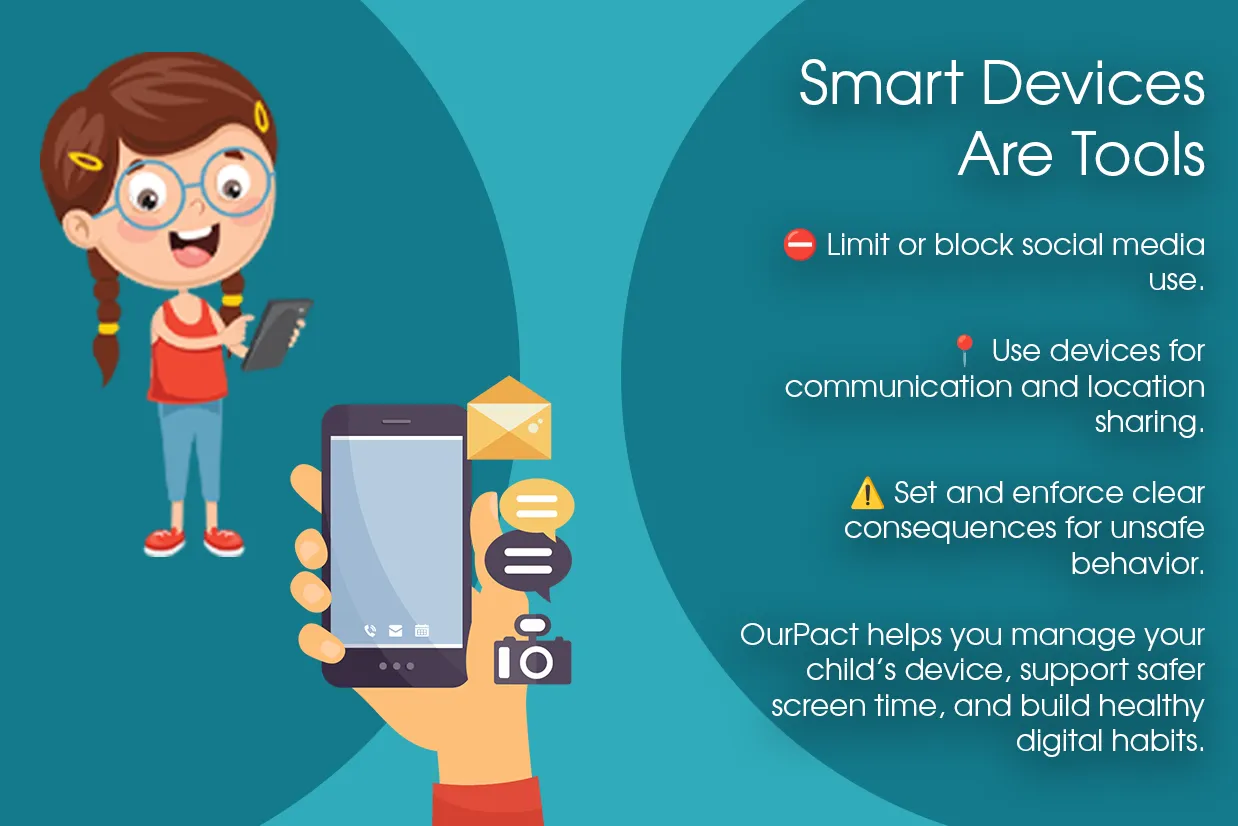


Manage Screen Time. Protect Your Family. Stay Connected.
OurPact makes digital parenting simple. Set app schedules, block distractions, and guide your kids toward smarter tech use, all in one easy-to-use app.